
Why there is no room ID field
REDnote uses the streaming account's Live Control Center in the background. You do not need a room ID or a viewer-side live room.
If a login window appears, sign in with the REDnote account that is streaming or about to stream. TKBOX opens the Live Control Center automatically. If it says the stream has not started, start it in REDnote Live Assistant.
Steps
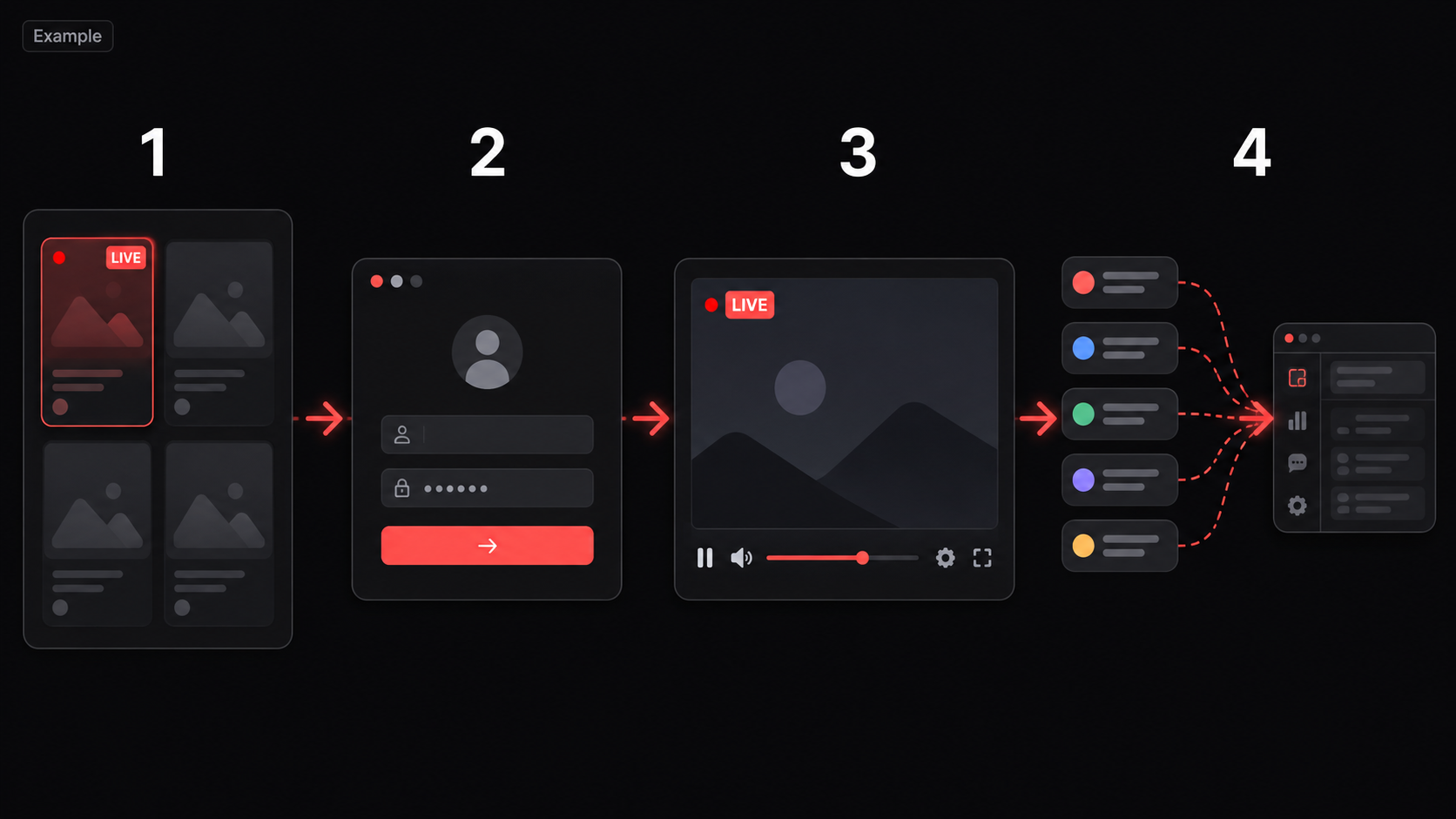
- Prepare the REDnote account used for streaming and complete any required sign-in verification.
- Select REDnote in TKBOX and choose Start. TKBOX shows the live management window only when the streaming account is not signed in.
- TKBOX opens the Live Control Center automatically. If it says the stream has not started, TKBOX hides the management window and displays “NOT LIVE · START STREAMING IN REDNOTE LIVE ASSISTANT.” Go live, then send a test interaction.
Before connecting
- If a login window appears, sign in with the correct streaming account and complete any verification.
- Streaming has started in REDnote Live Assistant and TKBOX no longer shows the not-live prompt.
- A new test comment appears in TKBOX.
Troubleshooting
When you are already signed in, the management window stays hidden; this is expected. It appears only when TKBOX asks you to sign in. If the account is signed in but not live, TKBOX displays “NOT LIVE · START STREAMING IN REDNOTE LIVE ASSISTANT.” To switch accounts, select TKBOX's Live Room button; the window stays open for 60 seconds and will not be forced closed while login or verification is unfinished. If chat is still silent after going live, confirm the account is not on a login or security-check page, then start the connection again.